sábado, 22 de dezembro de 2012

Failed RMS promotion

Last week, at a customer site, I needed to promote an MS server to RMS, in order to reuse the old RMS and the main SCOM 2012 server.
It is supposed to be a simple procedure, but, famous last words... (Oh, boy, I'm so glad all that RMS/MS went away with 2012).
The customer had the RMS, 3 MS and 3 gateway servers. The environment, although complex enough, is not being used too heavily, but I still took all the needed precautionary actions: DB backups, MP backups, etc.
 
So, here we go for the actual command:
C:\Program Files\System Center Operations Manager 2007>ManagementServerConfigTool.exe PromoteRMS /DeleteExistingRMS:True
 
Everything going ok, till:
Adjusting DW old RMS: ROOTMANAGEMENTSERVER.domain.tld new RMS: MANAGEMENTSERVER.domain.tld
Index was out of range. Must be non-negative and less than the size of the collection.
Parameter name: index.

Well, after recovering from the shock, I start to check the current state of things.
The old MS (RMS to be ) be shows as being the RMS now. Ok.
Services in the new RMS, not all started. Services at the old RMS, all started. Not good.
Since this environment is not fully operational and not heavily used (and I was not feeling like restoring the DB), I decided to dig a bit more.
So, I first fixed the services. Stopped and the services in the old RMS and started them in the new RMS. Looking good.
Then I noticed the 2 other management servers were grayed out. Not good. Why? They were still trying to talk to the old RMS. I then went straight to the registry and changed some keys (basically looked up the old RMS name). No luck after the restart.. Then I've found up the article on how to change the gateway server primary server and followed the same procedure (http://blogs.technet.com/b/operationsmgr/archive/2009/05/22/opsmgr-2007-how-to-configure-a-gateway-to-communicate-with-a-different-management-server-without-moving-agents.aspx), not exactly expecting it would work, since one would think that an MS would be more complicated than a gateway. Well, it did the trick. After I renamed the Health Service State  the MS went back to green and so did its agents.
The gateways themselves had to be fixed, but that was expected.
After that, I've configured what was left to be configured (Reporting) according to this article and I'm back in business. http://scomskills.com/blog/?p=59
I think that if this was a heavily used (real) production environment, I wouldn't proceed exactly like this, but it was good learning.
Hope it helps,
 
Jose Fehse

terça-feira, 6 de novembro de 2012

SCOM 2012 Extended Agent Info


SCOM 2012 Extended Agent Info - a SCOM 2012 migration companion MP
I don’t know about you, but I have been performing migrations of several SCOM 2007 R2 environments to SCOM 2012 and I could sure use some help. Since I don’t believe in in place migrations, I have decided to do all of them side by side. It has its issues, but I believe the resulting environment is cleaner.

I have started with the excellent post from Andreas Zuckerhut and from there I have developed my own methodology. I first started by automating some processes, like adding and removing management groups from the console: http://scomandplus.blogspot.ca/2012/07/adding-scom-agent-task-to-update.html. I have also added a task on the console to show the Management group info, but I always thought that it could be nicer. Then I decided to get serious, put the kids to sleep and wrote this little piece of SCOM authoring: a management pack that connects both the old and the new SCOM worlds.

A little background: when you do the side-by-side approach, the agents get a double personality disorder: they report to both SCOM MGs and one side doesn’t know about the other. So, during the process, you need to know:

                - Which agent has received the new management group configuration;

                - The agent version (that is available already, but not in the same view)

You’ll also need a tool to remove the old MG info from the console and a view to observe the results.

Say no more! Here it is! That’s what the MP does!

Now for some documentation:

Management Pack Elements

Discovery

It has a discovery, which creates the new extended agent class. It is based on the Windows Computer class and adds two properties:

                - Management Group Info

                                This field shows:  MGName;Primary Server;TCP Port##

                                In case you have more than one MG, it will show something like this:

                                MGName;Primary Server;TCP Port## MGName;Primary Server;TCP Port##

                - AgentVersion

Agent Tasks

We also have now three agent tasks, targeted to the Extended agent class:

                Remove MG info from Agent – it will require an override (the MG name) and will remove the MG info and restart the HealthService service.
Make sure you run the task as a Domain Admin or a local administrator on the server, otherwise the service may stop but may not start back, and you'll have a dead agent. Be careful with DMZ or servers in other domains. This tasks restarts the scom agent after it is finished. I have notes that around 15% of the agents won't start after the restart. This is due the way the agent works, since it is call a restart to itself. That's why I have added a version of the same task that won't restart the agent:
              Remove MG info (No Restart) - same as above, but no agent restart. You can use SC or psexec to restart the agents afterwards.
              Add MG info to agent - it can be used to fix a mistake or from any MP, add a second MG reference.

View

Extended Agents View - > All Agents - where you’ll be able to see the agents and their management group info.

Installation

                To install the MP, simply import the file through the SCOM console. To remove it, simply remove the management pack from the console. Make sure you install it in the NEW environment (2012).

Known issues

                The discovery runs on all windows computers. So, you may want to disable it and override it just for some computers. Another consequence of that is that it will run also on management servers and the script will potentially fail, generating some warnings, which can be safely ignored. The MG shouldn’t be there forever, so, as soon as you remove it, the warnings will disappear.

Download the MP here and please let me know of any problems you face.
 
Thank you! 


segunda-feira, 10 de setembro de 2012

Syncing only non-disabled users with Service Manager 2012 Active Directory Connector

Syncing only non-disabled users with Service Manager 2012 Active Directory Connector


Today at a customer implementation, we started importing users from AD into the Service Manager 2012 CMDB.
After the first sync, we noticed all users, including disabled ones, were synched.

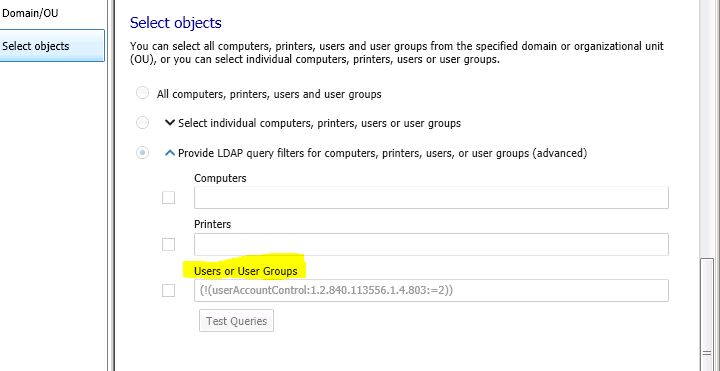
After some digging, it seems the LDAP query below does the trick:
 
 
Only the enabled users were imported.

quarta-feira, 22 de agosto de 2012

New SQL Management pack ships - 6.3.173.1

New SQL Management pack ships - 6.3.173.1

It can be found here:
http://www.microsoft.com/en-us/download/details.aspx?id=10631

New features:
AlwaysOn Monitoring
    • Automatically discover and monitor availability groups, availability replicas, and availability databases for hundreds of computers.
    • Health roll-up from availability database to availability replicas.
    • Detailed knowledge with every critical health state to enable faster resolution to a problem.
  • Seamless integration with Policy based management (PBM)
    • Auto-discover custom PBM polices targeting AlwaysOn and database components.
    • Rollup of health of policy execution within the SQL monitoring pack under extended health.
  • Support for Mirroring and Replication Monitoring (only applicable to SQL Server 2008 and 2008 R2 version of management pack)
    • Discover mirroring databases, witness, and mirroring group.
    • Monitor database mirror state, database mirror witness state, and mirroring partners’ state.
    • Custom diagram view to visually represent the primary and the mirrored databases.
    • Approximately twenty rules to detect replication events.
  • Improved Freespace monitoring with mount point support
Will update the post with impressions, but I just hope they fixed the tempdb zero size issue.

Stay tuned!

quinta-feira, 2 de agosto de 2012

Error in SCOM 2012 ACS Report: Sensitive Security Groups Changes

A customer of mine always had an issue with an ACS Audit report called "Sensitive Security Groups Changes". The information shown there didn't make a lot of sense. It would show the same user as the one being added to the group and the one being the one adding the user. Just some crazy stuff that could be fixed in report builder. But I was hired to upgrade the 2007 R2 structure to 2012, hoping that it would be fixed and maybe improved.
Nothing like that. In the end, it was even worse. For some reason, the information shown was completely wrong.
To fix the issue, I've opened an Incident with Microsoft, which didn't fix the problem, but lead me to fix it in the end.
It happens that the C:\Windows\System32\security\adtserver\eventschema.xml seems to be broken from the installation media.
The section for event 4728 seems to be broken:
        <Event SourceId="4728" SourceName="SE_AUDITID_ETW_GLOBAL_GROUP_ADD">
          <Call Name="AppendString" Param1="1" Param2="0" />
          <Call Name="AppendString" Param1="2" Param2="0" />
          <Call Name="AppendString" Param1="3" Param2="0" />
          <Call Name="AppendString" Param1="4" Param2="0" />
          <Call Name="AppendString" Param1="5" Param2="0" />
          <Call Name="AppendString" Param1="6" Param2="0" />
          <Call Name="AppendString" Param1="7" Param2="0" />
          <Call Name="AppendString" Param1="8" Param2="0" />
          <Call Name="AppendString" Param1="9" Param2="0" />
          <Call Name="AppendNamesFromSid" Param1="2" Param2="0" />
          <Param TypeName="typeUser" />
          <Param TypeName="typePrimarySid" />
          <Param TypeName="typeTargetUser" />
          <Param TypeName="typeTargetDomain" />
          <Param TypeName="typeTargetSid" />
          <Param TypeName="typeClientSid" />
          <Param TypeName="typeClientUser" />
          <Param TypeName="typeClientDomain" />
          <Param TypeName="typeClientLogonId" />
          <Param TypeName="typePrivileges" />
          <Param TypeName="typePrimaryUser" />
          <Param TypeName="typePrimaryDomain" />
        </Event>
The correct code (copied from 4729):
        <Event SourceId="4728" SourceName="SE_AUDITID_ETW_GLOBAL_GROUP_ADD">
          <Call Name="AppendString" Param1="1" Param2="0" />
          <Call Name="AppendString" Param1="2" Param2="0" />
          <Call Name="AppendString" Param1="3" Param2="0" />
          <Call Name="AppendString" Param1="4" Param2="0" />
          <Call Name="AppendString" Param1="5" Param2="0" />
          <Call Name="AppendString" Param1="6" Param2="0" />
          <Call Name="AppendString" Param1="7" Param2="0" />
          <Call Name="AppendString" Param1="8" Param2="0" />
          <Call Name="AppendString" Param1="9" Param2="0" />
          <Call Name="AppendString" Param1="10" Param2="0" />
          <Call Name="AppendNamesFromSid" Param1="2" Param2="0" />
          <Param TypeName="typeUser" />
          <Param TypeName="typePrimarySid" />
          <Param TypeName="typeTargetUser" />
          <Param TypeName="typeTargetDomain" />
          <Param TypeName="typeTargetSid" />
          <Param TypeName="typeClientSid" />
          <Param TypeName="typeClientUser" />
          <Param TypeName="typeClientDomain" />
          <Param TypeName="typeClientLogonId" />
          <Param TypeName="typePrivileges" />
          <Param TypeName="typePrimaryUser" />
          <Param TypeName="typePrimaryDomain" />
        </Event>
Make sure you make a copy of the file before changing. When you're done editing the file, restart the Collector service and you should be ok.

Adding an Agent Task to Fix the Active Directory 2008 Management Pack Console Tasks

Hi fellow SCOMmers, a quick tip on how to create a task to add a symbolic link to the C:\Program Files to all your domain controllers. Why?
First a little background:
In the Active Directory 2008 Management pack, it will still try to run some of the console tasks from the wrong folder:


You can always Override the parameter temporarily, but if you do it very frequently, will be a pain. Of course, ideally, Microsoft would fix this at some point, but since we can't change the management pack permanently, a quick way to fix it is to create a symbolic link to the Support Tools folder pointing to C:\Windows\System32, where most of these tools like DCDIAG.EXE are.
So, the steps:
  1. Open the SCOM console
  2. Select the Authoring Area and select Management Pack Objects
  3. Right Click Tasks and select Create a new Task
  4. Name the task, select a target (Active Directory Domain Controller Server 2008), select a proper management pack and configure the command as below and click Create:

Here is the command line parameters text, so you don't yell at me that you can't copy and paste it:
      /c mklink /d "C:\Program Files\Support Tools" %windir%\system32

5.To use the task, select the server in the Monitoring view, under the Windows Active Directory Server state view and click on the task from the Tasks panel on the right:

Hope it helps!

Happy SCOMming


quinta-feira, 12 de julho de 2012

Adding a SCOM Agent Task to Update the Management Group

Scenario

In a migration from SCOM 2007 R2 to SCOM 2012, I came into to the situation of needing to update the management groups to which the agents report to. I didn’t want to manually type the info more than 50 times for this customer, so, I spent some time digging and found all the pieces I needed to add the management groups from the Console, using an agent task.
The only challenge was that you can't use VBS itself to stop and start the services. Since the script runs in the context of the Health Agent, which is killed along with the services, it would stop, but would never come back. That's why the script has to create a local batch (which should be removed, I know...), and then starts it.

Solution

In the SCOM Console, go to the Authoring section, expand Management Pack Objects, right-click on Tasks and select Create a New Task:


In the next dialog, select run a Script and select or create a management pack to store the Task. If you’re using SCOM 2007, make sure you don’t select the Default Management Pack:


Name the task, fill in a good description and pick Health Service as target for the Task:


Click next and fill the information below as follows:

See the script below.
Click Finish.

Now you should see the Task available in the Tasks pane whenever you’re in the context of a Health Agent, as in the example below:


The script can be improved, to add some more error handling, for example, to give more feedback. I'll try to do that and update it here.
So, here goes the script:

On error resume next
Dim objMSConfig
Set objMSConfig = CreateObject("AgentConfigManager.MgmtSvcCfg")
wscript.echo "Adding NEWMG MG to the agent. Reporting to myserver.mydomain.local on port 5723"
Call objMSConfig.AddManagementGroup ("NEWMG", "myserver.mydomain.local",5723)
if err.number = 0 then
                dim strServiceName, objWMIService, colListofServices, objService
                strServiceName = "HealthService"
                wscript.echo "Successfully added Management Group."
                dim sFilePath
                Dim objFSO 'As FileSystemObject
                Dim objTextFile 'As Object
                Dim oShell
                Set oShell = CreateObject( "WScript.Shell" )
                temppath=oShell.ExpandEnvironmentStrings("%TMP%")
                'wscript.echo "Temp Path" & temppath
                wscript.echo "Restarting Agent."
                sText="net stop """ & strServiceName & """" & vbcrlf &  "net start """ & strServiceName & """"
                sFilePath=temppath & "\sshs.bat"
                'wscript.echo "Writing to " & sFilePath
                Set objFSO = CreateObject("Scripting.FileSystemObject")
                Set objTextFile = objFSO.CreateTextFile(sFilePath, True)
                ' Write a line.
                objTextFile.Write (sText)
                objTextFile.Close
                oShell.run sFilePath
else
                wscript.echo "Error adding Management group - " & err.Description
end if

Changing the script to remove the MG:
Call objMSConfig.RemoveManagementGroup ("MyManagementGroupToRemove”)

Please refer to this link for a complete documentation:
http://msdn.microsoft.com/en-us/library/hh328987

Hope it helps and happy SCOMming!